How to Turn a Claude Doc Into a Word File When Someone Asks for One
Ask Claude to write you a proposal, a policy, or a one-page plan, and you probably won’t get a .docx in the chat. You get a Claude Doc instead: a live page that opens right next to the conversation, where you can type, comment, and share. That catches people off guard, because somewhere down the line a client or a committee is going to say “can you send that as a Word file?”
You can, any time you want. The Doc is where the writing happens, and the Word file is just the copy you hand off. Here’s how the whole thing fits together.
Why Claude starts with a Doc instead of a file
A file is a snapshot. Every change has to go back through Claude, and every change means a new download, and pretty soon you’ve got “proposal_v4_FINAL_really.docx” sitting in your Downloads folder.
A Doc stays put. You fix a sentence yourself, leave a comment for Claude on the paragraph that needs work, and the page updates in place. It’s private until you share it, and it’s still there next month without digging through old chats.
The Word file only comes in when the writing has somewhere to go.
Step 1: Ask for the document, not the format
How you phrase it decides what you get. Compare these two:
Write up a one-page plan for the spring fundraiser so I can send it to the board.
Make me a Word file with a one-page plan for the spring fundraiser.
The first gets you a Claude Doc. The second names a format, so Claude builds a .docx directly, with no live page behind it.
Saying where it’s headed (“I’ll email it,” “I need to print it,” “the board wants an attachment”) doesn’t change anything. Claude still makes the Doc, because you can download whatever version you need from it later. Only naming the format does that.
My recommendation: ask for the document and export at the end. You get the easy editing now and the Word file when it counts.
Step 2: Watch it fill in, then fix it your way
Claude puts the title and section headings up first, before it does any research, so you see the plan for the document right away. Then the sections fill in one at a time while you watch.
Once it’s done, you’ve got two ways to make changes:
- Type it yourself. A wrong date, a name spelled funny, a sentence you’d say differently. It’s faster than asking.
- Leave a comment for Claude. Highlight a paragraph and ask for what you want: “make this shorter,” “add a budget table here.” Claude changes that part and replies in the comment thread.
Anything you edited by hand stays edited. If you changed a line and Claude goes to rewrite that same spot, your version wins and Claude tells you what it kept.
Step 3: Export the Word file
When it’s ready to leave Claude, click the Doc’s name at the top and pick Export. You’ll see:
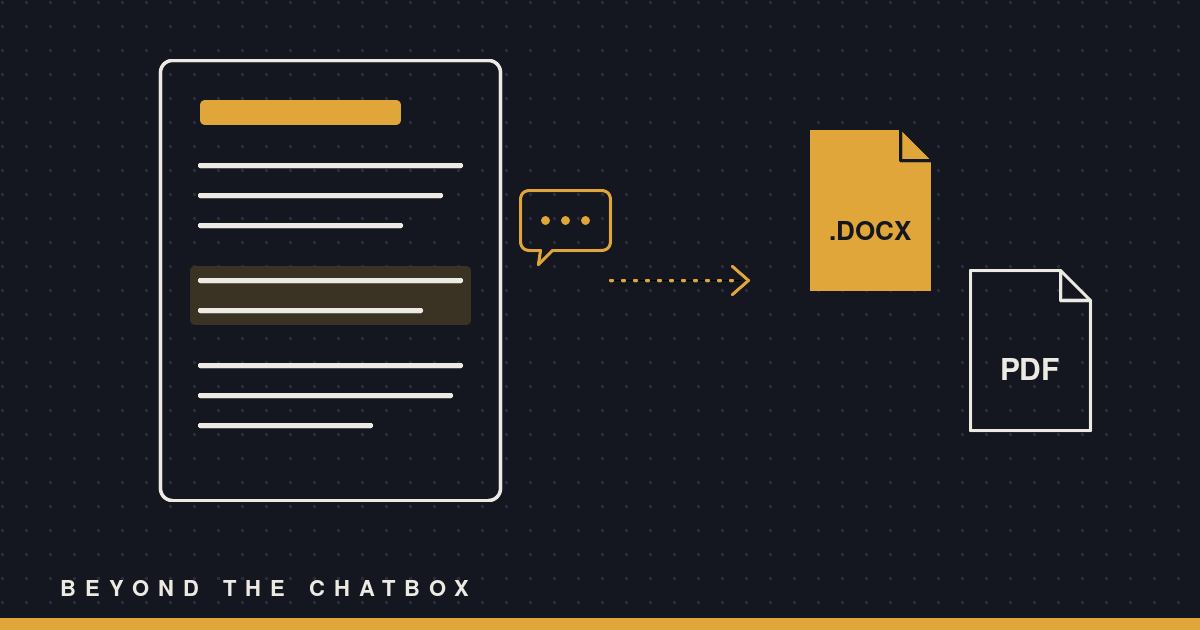
- Word (.docx) for anyone who’s going to edit it or track changes on their end
- PDF for printing, handouts, or an attachment nobody should be changing
- Markdown if it’s headed into a website or a notes app
- A copy sent to Google Docs or Notion, if that’s where your team works
A couple of things worth knowing. Export grabs the tab you have open, so if the Doc has more than one tab, export each one you need. On the phone app, Export lives under the Share button instead of the Doc’s name. And if someone only gave you view access to their Doc, you may not see Export at all.
Step 4: Or have Claude export it for you
You don’t have to click anything if you’d rather not. Say “export the fundraiser plan as a Word file and save it in my folder,” and Claude pulls the .docx itself and drops it wherever you’ve given it access. That’s handy on a scheduled run, or when the file needs to land next to everything else for a project.
In a plain chat where Claude can’t save files, it’ll point you back to the Export menu.
Step 5: Keep the Doc as your master copy
This is the habit that makes it all worth it. Edit the Doc, then export a fresh Word file when you need one. If you start fixing things inside the downloaded .docx, those fixes live only in that file, and next quarter’s version starts from the old wording.
Come back in a new conversation and say, “Update the fundraiser plan with the new date.” Claude finds the Doc, changes what needs changing, and you export again. One source, as many copies as people ask for.
When you should just ask for the Word file
There are a few times a .docx straight from Claude is the better call:
- You need tracked changes. A Doc keeps comments and version history, but if your reviewer works in Word’s track changes, ask for the Word file.
- You need page numbers or a table of contents. A Doc doesn’t do those, so a Word file is the way to go.
- You’re editing a Word file someone sent you. Attach it and say what to fix. Claude works in that file and hands back the same format.
Otherwise, write in the Doc, share the link with anyone inside your organization, and export the Word file for everyone else. Easy as that!