How to Set a One-Time Reminder That Comes Back to the Same Conversation
Sometimes you’re halfway through something and you can’t finish it yet. The vendor hasn’t answered, the numbers don’t post until Friday, or you just want a second look at a draft after it’s had a day to sit. What you want is for Claude to tap you on the shoulder later, in this same chat, with everything you already talked about still sitting right there.
That’s what a send-later reminder does. It’s the little cousin of a scheduled task, and picking the right one of the two saves you from a lot of re-explaining.
Two kinds of “do this later”
Cowork has two ways to put something on the clock, and they behave very differently once the time comes.
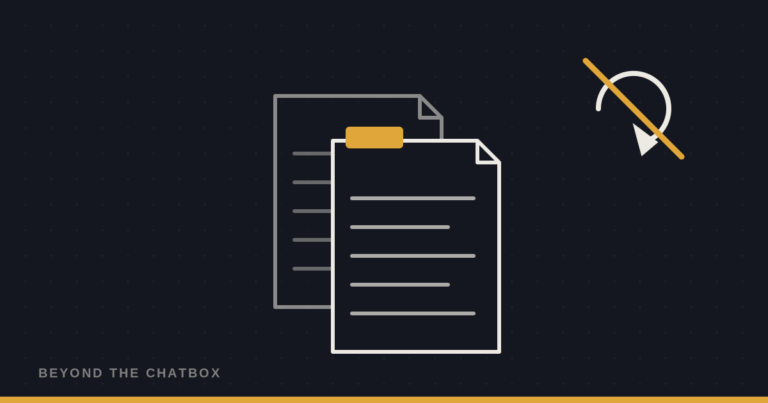
A scheduled task starts a brand-new session every time it fires. It has no memory of the conversation where you set it up, so its instructions have to stand on their own: full file paths, what to read first, what counts as done. That’s how this blog’s idea-and-reminder task works, and it’s the right tool for anything that repeats, like every Monday or every morning.
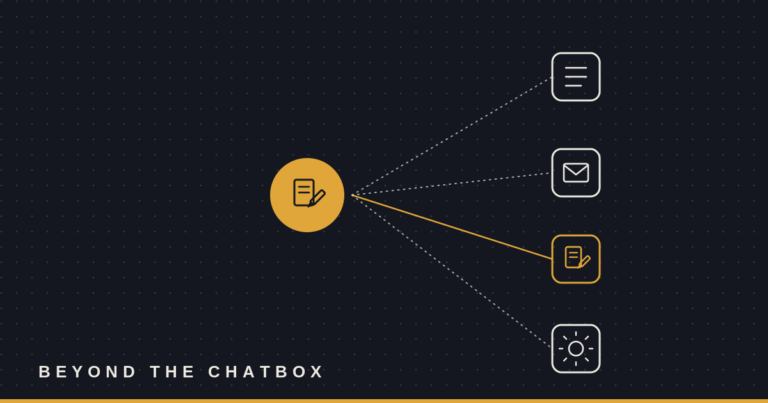
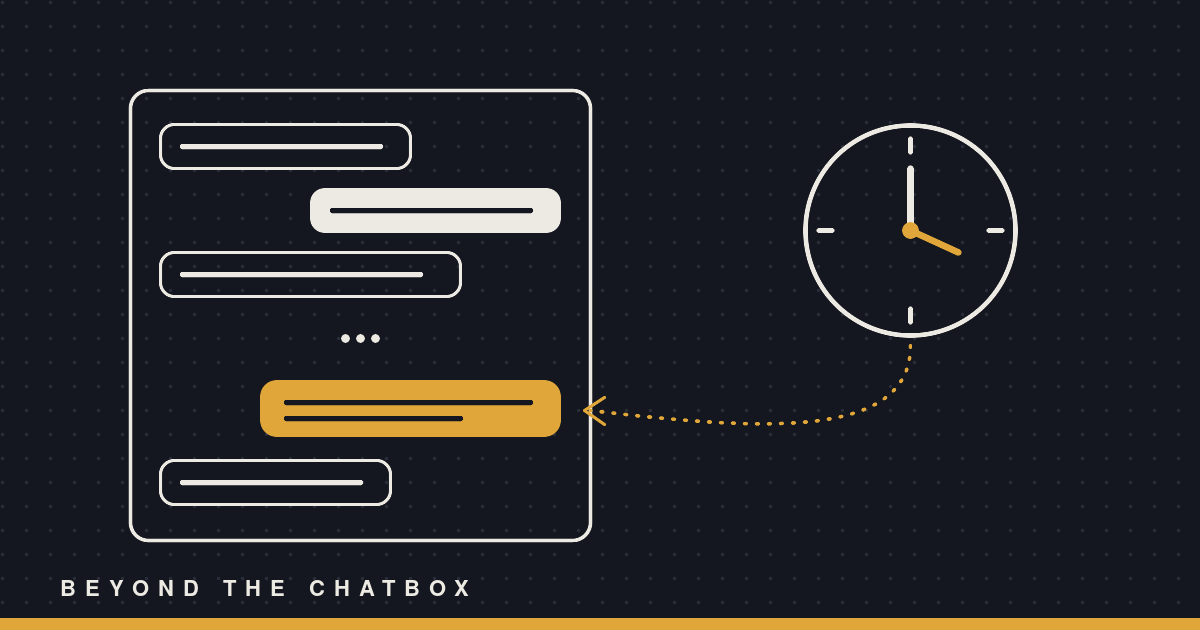
A send-later reminder drops a message back into the conversation you’re already in. When it fires, it shows up as a new turn in the same chat, like you’d typed it yourself. Claude still has the whole thread: the file you were editing, the decision you made an hour ago, the thing you said you’d check. Nothing has to be restated.
So the question to ask is simple. Is this a standing job, or is it a follow-up on what we’re doing right now? Standing job, scheduled task. Follow-up, send-later.
Step 1: Ask in plain words
You don’t need special syntax. Something like this works:
“Remind me here tomorrow at 3pm to check whether the vendor replied, and if they did, draft a response using what we worked out above.”
Or with a delay instead of a clock time:
“Check back in 45 minutes and see if the export finished.”
The phrase that matters is “here” or “in this chat.” It tells Claude you want the follow-up to come back to this conversation, not to start somewhere fresh. Without it, a request like “remind me Friday” is fair game for either tool, and Claude has to guess.
Step 2: Write the message for this conversation, not for a stranger
This is the nice part. Because the reminder lands in the same thread, the message can lean on everything above it. “Pick up where we left off on the October budget” is a perfectly good reminder here, while in a scheduled task it would mean nothing, because that new session never saw the October budget.
Claude writes the reminder text and gives it a short label, something like “Check vendor reply,” so you can spot it later in your list of scheduled tasks.
Step 3: Get the time right
A few details worth knowing:
- It works in minutes, not seconds. The scheduler checks once a minute, so “at 3:00” means sometime in the 3:00 minute.
- You can give a time or a delay. “Friday at 9am” or “in two hours” both work. If you give a clock time, say your time zone if there’s any chance Claude doesn’t know it.
- The time has to be in the future. Sounds obvious, but “remind me at 9” at 9:30 needs a “tomorrow” in there.
Step 4: Close the app and go on with your day
You don’t have to keep the chat open. The reminder is stored outside the session itself, so it survives the cloud workspace restarting while you’re gone. When the time comes, the message shows up in the conversation and Claude starts working on it.
This is the difference from the in-session timer. Claude also has a lightweight timer that only lives as long as the session does. Anything set there disappears when the conversation ends, which is why Claude is told never to use it for something you’re counting on.
Step 5: Change your mind if you need to
Each reminder comes back with an ID, and Claude can cancel it before it fires. Just say “cancel that reminder” in the same chat. If the vendor writes back early, there’s no reason to let a stale nudge go off tomorrow.
Once a reminder fires, it turns itself off. It’s a one-shot, so you won’t get the same tap on the shoulder every day after.
One thing a reminder can’t do
A reminder arriving in the chat looks like a message from you, but Claude doesn’t treat it as you sitting there giving fresh approval. If the reminder says “send the reply,” Claude is built to check with you before sending, because nobody actually confirmed it at that moment. Draft it, sure. Send it, not without you.
That’s a good thing. It means you can set up a follow-up for tomorrow without accidentally pre-approving something you’d want to look at first.
When to use which
- “Every Monday, pull last week’s numbers” is a scheduled task.
- “Tomorrow at 3, check if the vendor answered” is a send-later reminder.
- “In an hour, see if the export’s done and finish the cleanup” is a send-later reminder.
- “On the first of next month, start a fresh report from scratch” could go either way, but since it doesn’t need this chat’s history, a one-time scheduled task is the cleaner fit.
Pick the one that matches where you want the answer to land, and you won’t have to explain yourself twice. Simple as that!