How to Pin a Page to Your Sidebar So You Stop Hunting for It
Here’s a small annoyance that adds up. You had Claude build you a tracker a few weeks back, something you check every Monday, and now you can’t remember which conversation it came from. So you scroll. And scroll. And eventually you just ask Claude to build it again.
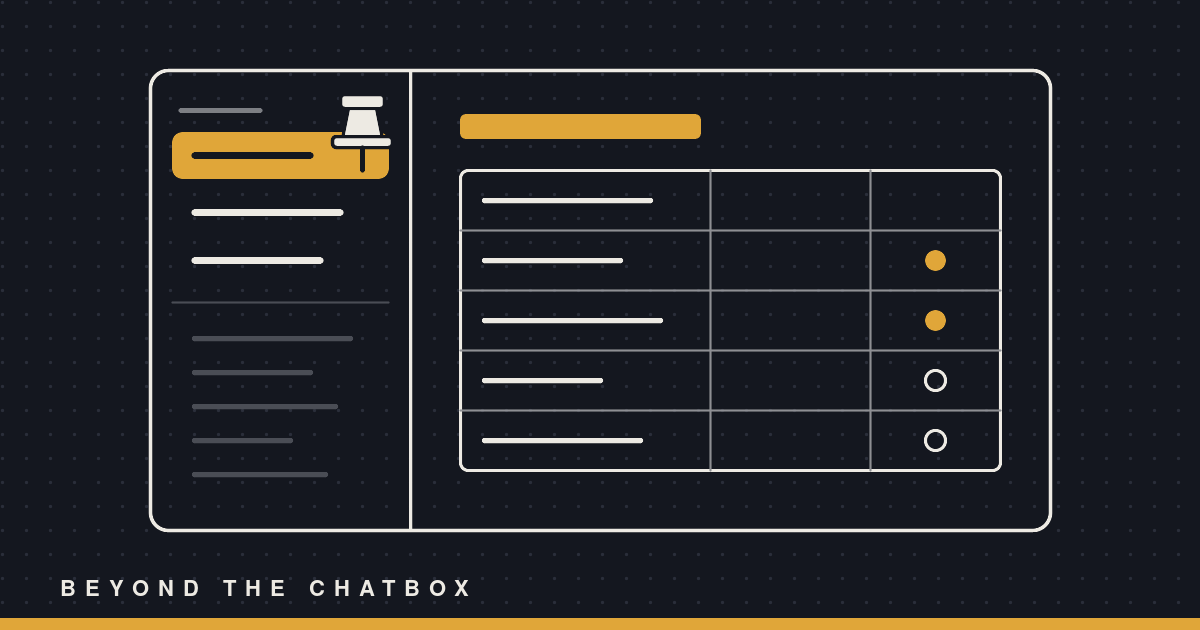
You don’t have to do that. Pages Claude publishes live on claude.ai with their own link, and the ones you use all the time can be pinned to your sidebar. One click and you’re there.
First, what counts as a “page”
When Claude makes something you’ll come back to, like a dashboard, a status page, a sign-up sheet, or a cheat-sheet, it doesn’t just drop a file in the chat. It publishes it as an artifact, a hosted page on claude.ai that’s private to you until you choose to share it.
That page outlives the conversation it came from. You can close the chat, start ten new ones, and the page is still there at the same link. Claude can update it later, and anyone who already has it open sees the new version without refreshing.
The catch is finding it again. Every artifact you’ve made lands in your gallery, newest first, and after a month of building things that list gets long. Pinning is how you pull the handful you actually use up out of the pile.
Step 1: Build (or find) the page
If the page doesn’t exist yet, just ask for it. Something like:
“Build me a tracker for my blog posts: title, publish date, status, and whether the branding card is done.”
Claude publishes it and you get a card in the chat that opens the page.
If it already exists from an earlier conversation, you don’t need the old chat. Ask Claude to find it:
“Find the blog post tracker you made me last month.”
Claude can list your artifacts and pick out the right one. If it can’t tell which one you mean, it’ll ask you for the link instead of guessing.
Step 2: Ask Claude to pin it
“Pin that to my sidebar.”
That’s the whole step. The page shows up in your pinned list in the claude.ai sidebar, and from then on it’s one click from anywhere in the app.
You can also ask up front. If you already know this is something you’ll open every week, say so when you ask for it: “Build me a weekly sales tracker and pin it to my sidebar.” Claude publishes it and pins it in the same step. If the pin doesn’t go through for some reason, the page still gets published, and Claude will tell you the pin is the part that didn’t work.
Step 3: Unpin when it’s done its job
Pinned lists get cluttered too. When a project wraps up, just say:
“Unpin the volunteer drive tracker.”
Unpinning only takes it out of the sidebar. The page itself, its link, and any data in it all stay right where they were, and you can still find it in your gallery. Deleting is a separate thing, and Claude won’t delete a page unless you clearly ask, since that breaks the link for everybody it was shared with.
Why Claude doesn’t just pin everything
You might wonder why Claude waits for you to ask. If it knows you’ll reopen a dashboard, why not pin it automatically?
Because the sidebar is yours. It’s a short list on purpose, and if Claude pinned every tracker, chart, and one-off mockup it ever built, you’d be right back to hunting. So the rule is plain: Claude pins and unpins only when you ask.
There’s one small exception. Right after Claude builds something you’ll obviously keep coming back to, like a dashboard, it may offer once to pin it for you. Say yes and it’s pinned. Say nothing and it lets it go. It won’t ask again every time it updates the page, and it won’t pin a quick “just to see what it’d look like” mockup at all.
The same goes the other way. Claude won’t unpin something it didn’t pin in the first place, unless you ask. If you pinned it, it stays pinned until you decide otherwise.
A good habit
Pin the three or four pages you open every week, and leave everything else in the gallery. When a page earns a spot, pin it. When it stops being useful, unpin it.
Your sidebar stays short, your gallery keeps everything, and you stop rebuilding things you already have. That’s a win!