
How to Merge a Folder Full of CSVs Without Uploading a Single One
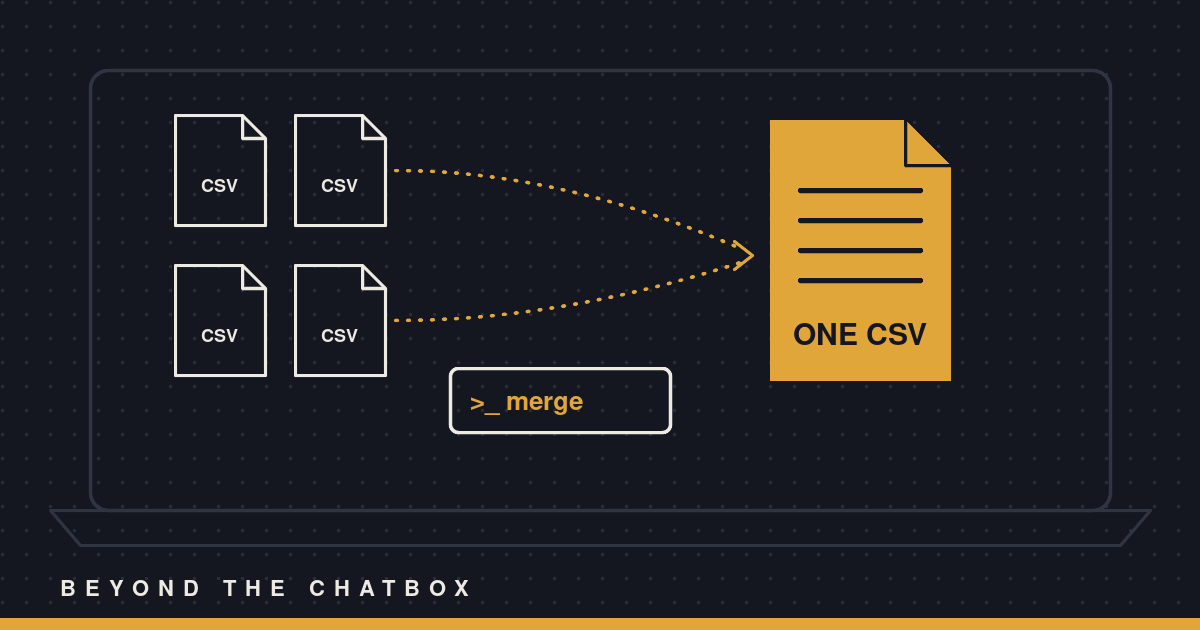
Most of us have a folder like this somewhere. Twelve monthly exports from the bank, a CSV for every week of event sign-ups, or a sales report that comes out as one file per store. Each one is fine on its own, but the question you actually want answered needs all of them in one place.
Claude can stitch them together right where they sit. No uploading twelve files into a chat, no copy and paste marathon in Excel. You point it at the folder, it runs a short script on your computer, and the combined file shows up next to the originals.
Why “on your computer” matters
When you connect a folder in the Claude desktop app, Claude gets a shell on your machine that can only see that folder. It can list files, read them, and run small scripts there.
That changes how the work happens. Without it, every file would have to make a trip up to Claude’s cloud workspace and the result would have to make a trip back down. That’s slow, it burns through usage, and it leaves you with two copies that can drift apart. With the folder connected, the files never leave your computer. Claude sends the instructions over, the script runs locally, and only a short summary comes back to the chat.
For a merge job, that’s the whole ballgame. Twelve files or two hundred, it’s one script either way.
Step 1: Connect the folder
In the Claude desktop app, add the folder that holds your CSVs. Pick the narrowest folder that does the job. If the exports live in Finances/2026 Bank Exports, connect that, not your whole Documents folder.
Claude can only touch what you connect, which is exactly how you want it.
Step 2: Ask in plain English
You don’t need to know any code. Something like this works:
Merge all the monthly CSVs in my 2026 Bank Exports folder into one file. Keep the header once at the top and add a column that says which file each row came from.
That last part is worth stealing. A “source file” column means that when something looks off in the combined file, you can trace it straight back to the month it came from.
A few other things you can tack on if they matter to you:
- “Sort it by date”
- “Drop any exact duplicate rows”
- “Only include the files from Q3”
- “Save it as an Excel file instead”
Step 3: Let it look before it merges
Here’s where a good merge earns its keep. Before writing anything, Claude reads the top of each file to check that the columns actually line up. Banks love to rename a column halfway through the year, or add a new one in March and never tell anybody.
If the headers match, Claude goes ahead. If they don’t, it tells you what’s different (“the files from April on have an extra Category column”) and either lines them up sensibly or asks how you want it handled. That’s a lot better than finding out three weeks later that half your amounts landed in the wrong column.
Step 4: Find the new file next to the old ones
The script writes the combined file into the same folder, under a new name like 2026-bank-exports-combined.csv. Your originals stay exactly as they were.
That’s on purpose. Claude saves cleaned up or merged versions as new files beside the originals instead of writing over them, and it doesn’t delete anything in a connected folder unless you approve it first. If the merge isn’t what you wanted, you just ask for another pass. Nothing was lost.
Claude also keeps its scratch work out of your folder. Any in-between files live in a temporary spot on its side that you’ll never see, so you don’t open the folder later and find a pile of temp_merge_3.csv leftovers.
Step 5: Ask it to check its own work
When it’s done, Claude will usually tell you the row counts: how many rows came from each file and how many ended up in the combined one. If those numbers don’t add up, something got dropped, and it’s a whole lot easier to catch that now.
If it doesn’t mention the counts, ask. “Do the row counts match?” is a quick sanity check that takes seconds.
When it does need the cloud
Every so often a step needs a tool that isn’t on your computer and won’t install with one command, like building a chart from the merged data. In that case Claude sends just the file it needs up to its cloud workspace, does that one step, and saves the result back into your folder. It doesn’t ship the whole folder up because it can.
For a plain merge, though, that almost never comes up. Python and a few lines of code are all it takes.
Do it once, then keep doing it
If this is a monthly chore, say so. Claude can turn the same merge into a scheduled task that runs on the first of every month, picks up the newest export, and refreshes the combined file without you lifting a finger. Since that run works on your folder, your computer needs to be on with the Claude app open when it fires.
That’s when it stops being a trick and starts being a habit. One folder, one ask, and the spreadsheet is ready before you’ve had your coffee.